How to set up AC Bridge, step by step
From first launch to a light that follows your project folder. Screenshots are from the real app, with sample devices and a few lines tidied.
This guide starts once the app is installed. First launch covers what Windows, macOS and Linux show the first time you open it.
Sign in and pass the checks
The app needs your account, and one quick check of this computer.
-
Step 1
Sign in to the app
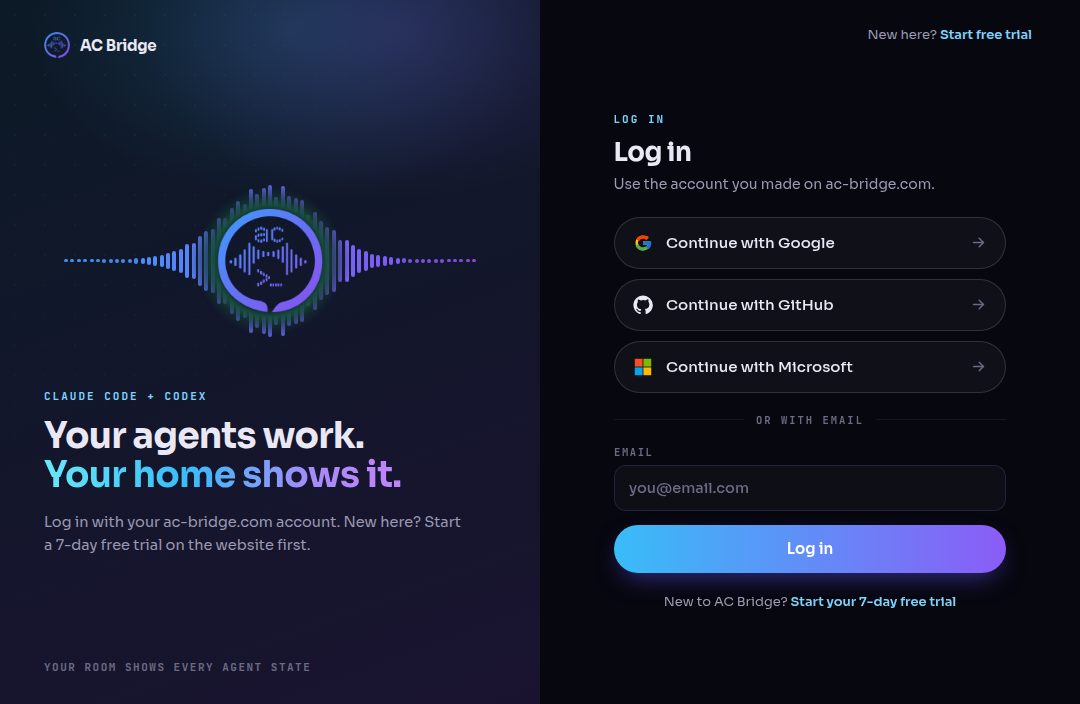
Screenshot: the window you see when the app first opens. Open AC Bridge and use the account you made on the website. Sign-in finishes in your browser, then the app comes back.
-
Step 2
Pass the first-run checks
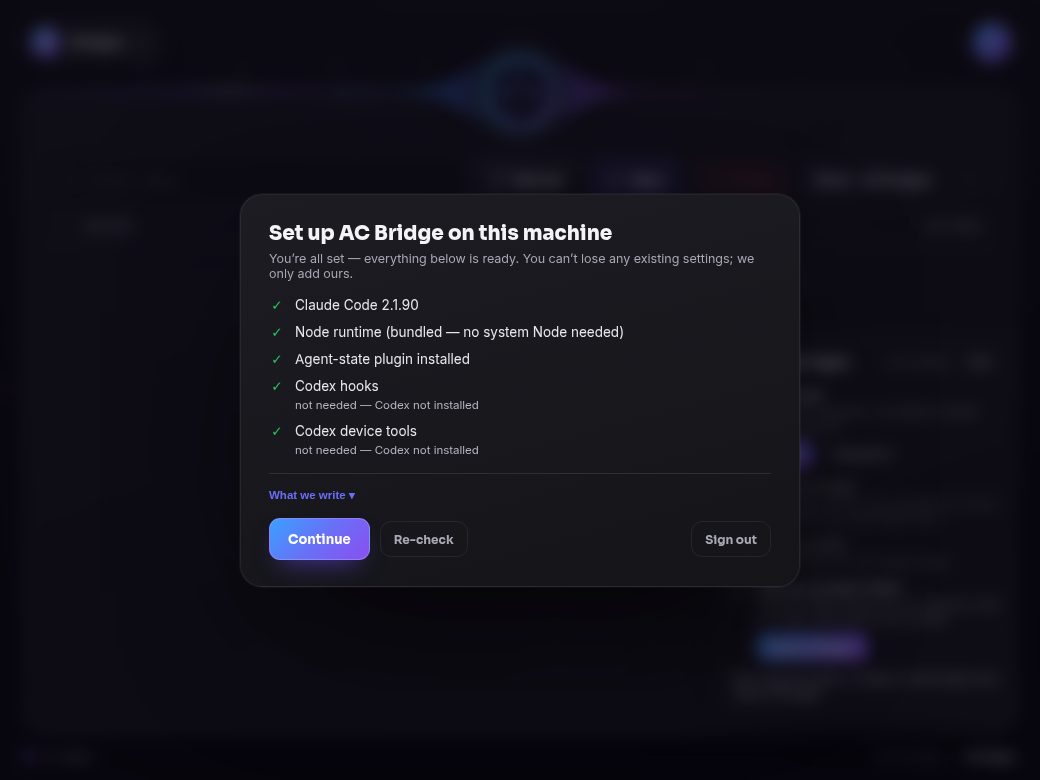
Screenshot: every check is green, so Continue is open. The app looks for Claude Code or Codex and adds its small plugin. If a row is not green, press Approve, then Continue.


Start the bridge and scan
The bridge does the work on your network, so it comes first.
-
Step 3
Press Start
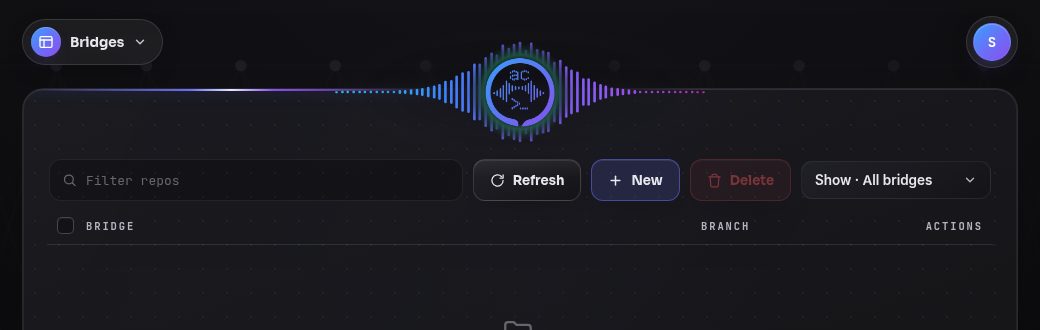
Screenshot: the badge once the bridge is running. Press the Start badge and leave it on. AC Bridge runs on one computer at a time; the last one you start takes over.
-
Step 4
Run a scan
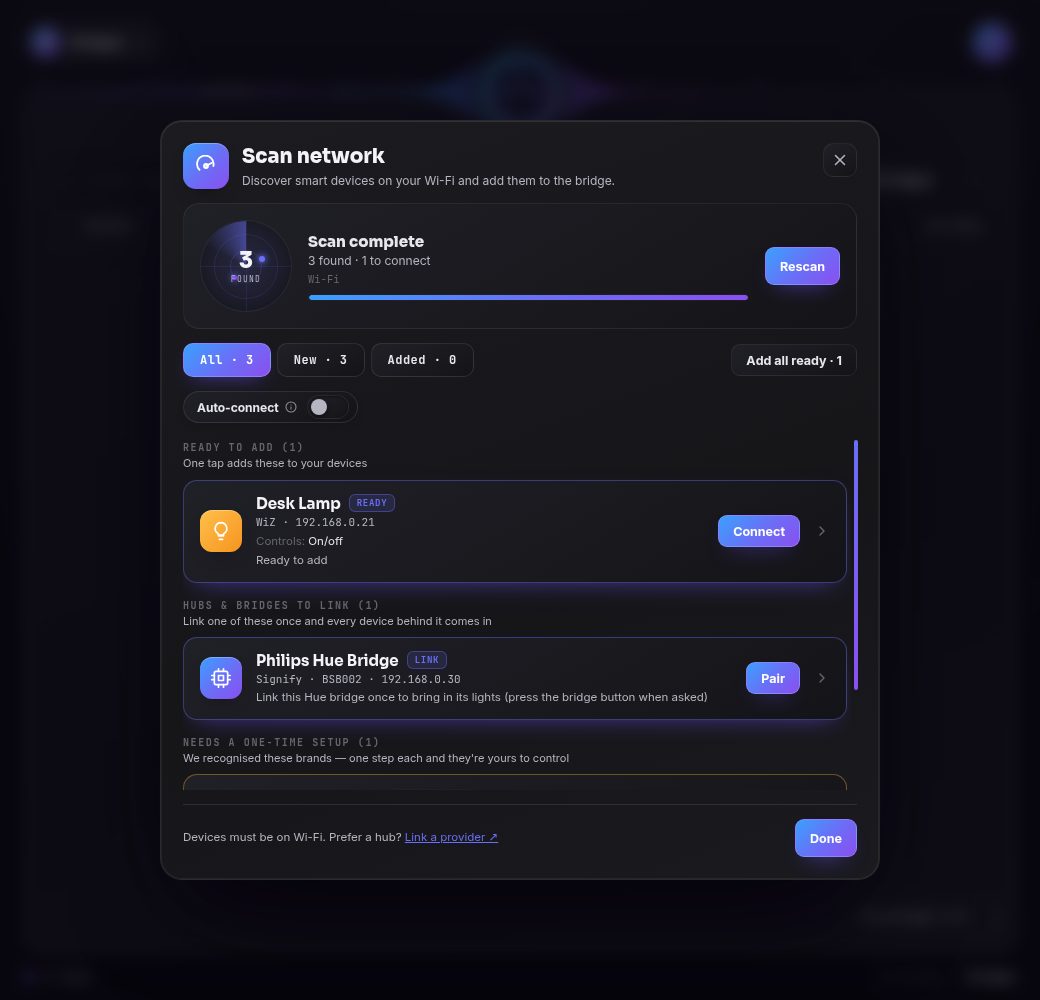
Screenshot: a finished scan, sorted into three groups. Open Scan from the menu and start it. Devices it can add sit at the top, hubs and bridges come next, and anything that needs a sign-in or key is listed last.


-
Step 5
Add a device
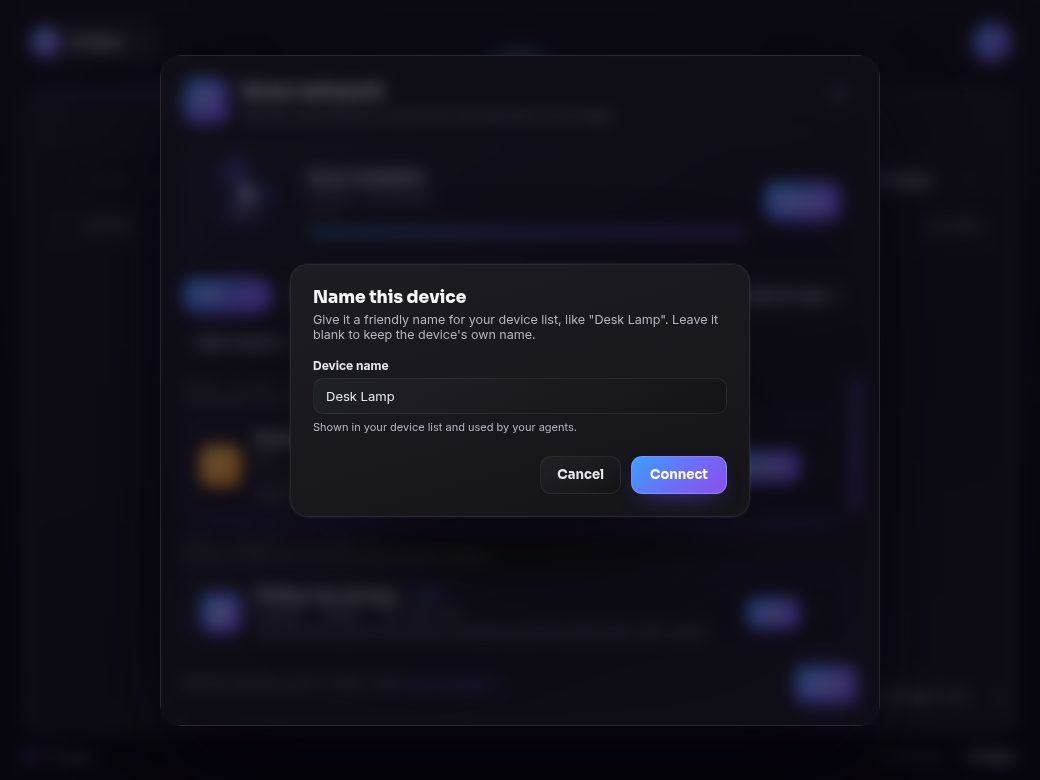
Screenshot: name the device, then connect it. Press Connect on a row, keep the name or type your own, and press Connect again.
-
Step 6
Check it on Devices
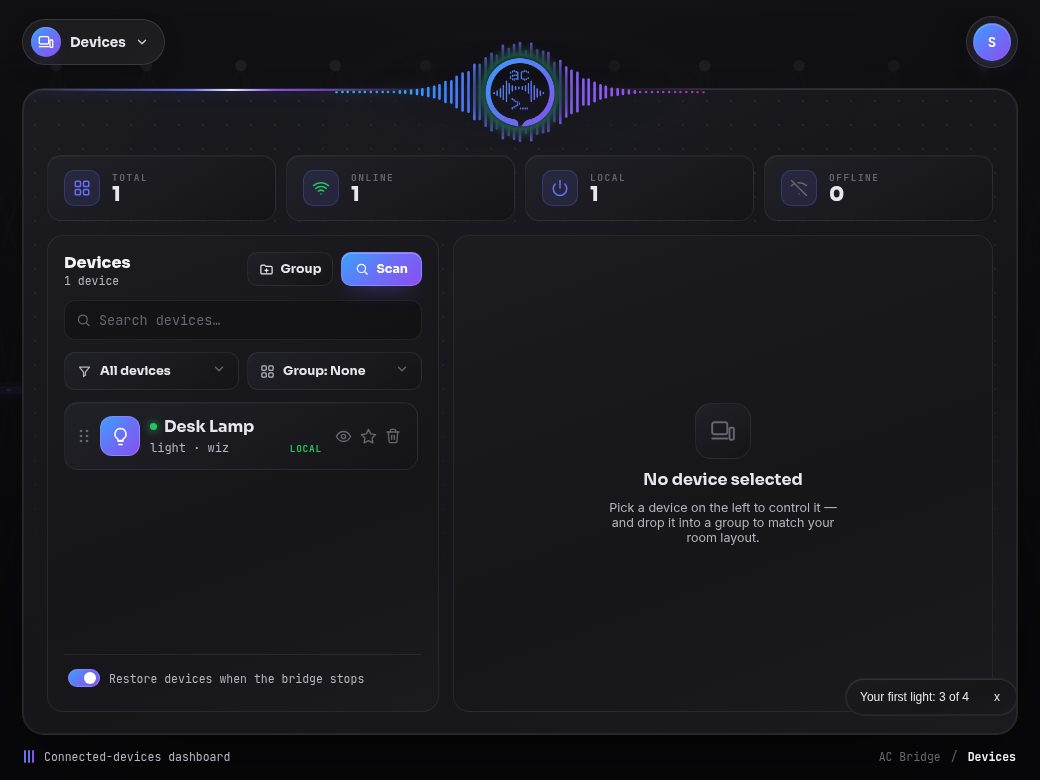
Screenshot: the new lamp on the Devices page. Open Devices from the menu. Everything you add shows here, and this is where you try a device.


Link what Scan cannot add alone
Open Integrations from the menu, or use a row's button in Scan. Keep the bridge running: these steps run on it.
-
Step 7
Philips Hue
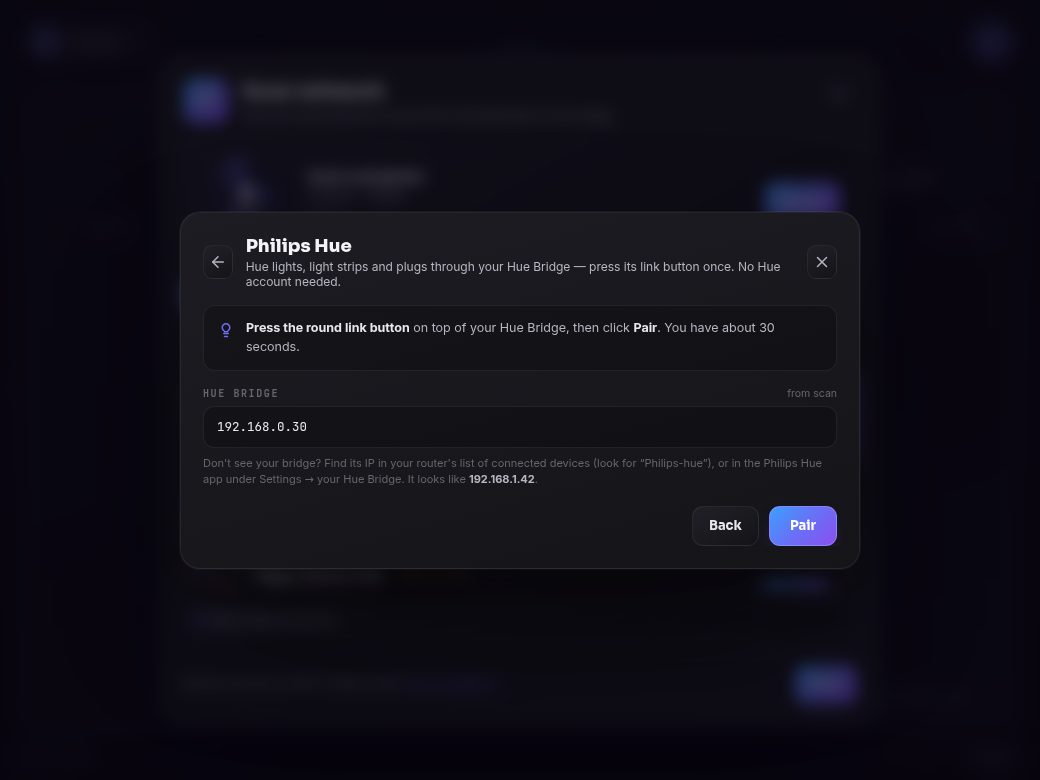
Screenshot: the address comes from the Scan row. No Hue account needed. Press the round link button on top of your Hue Bridge, then click Pair within about 30 seconds. Its lights come in with it.
-
Step 8
Link your own server
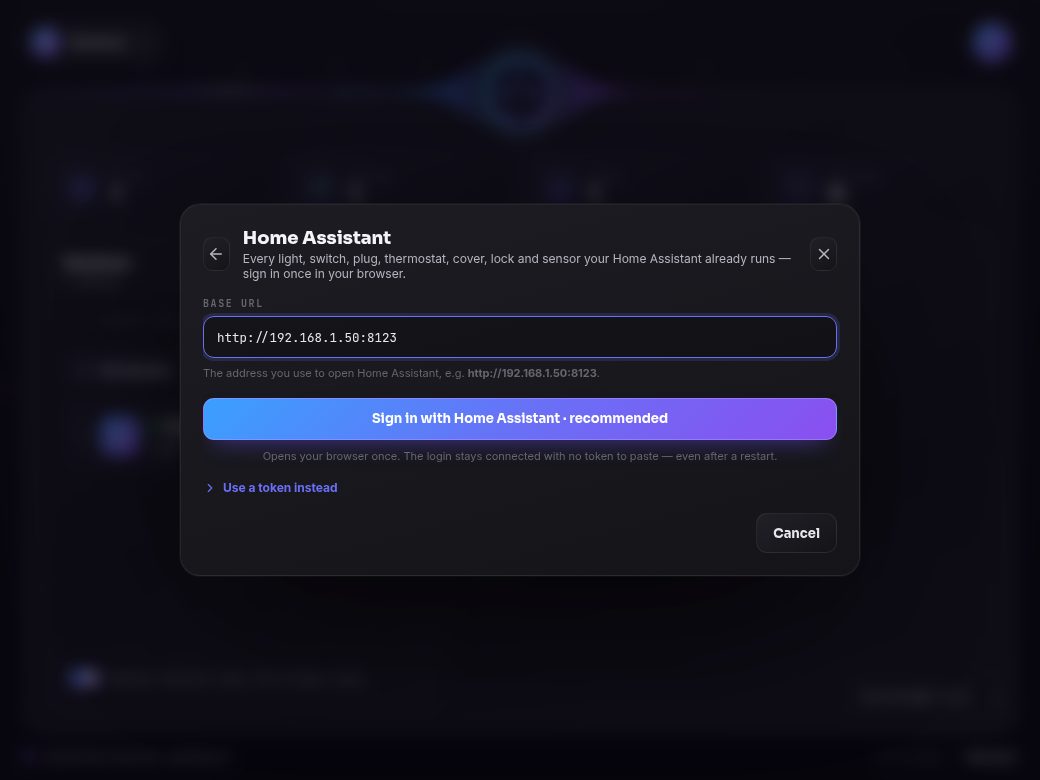
Screenshot: type the address you use to open Home Assistant. Enter your server's address and choose Sign in with Home Assistant. A token works too, under Use a token instead.


-
Step 9
Tuya and Smart Life
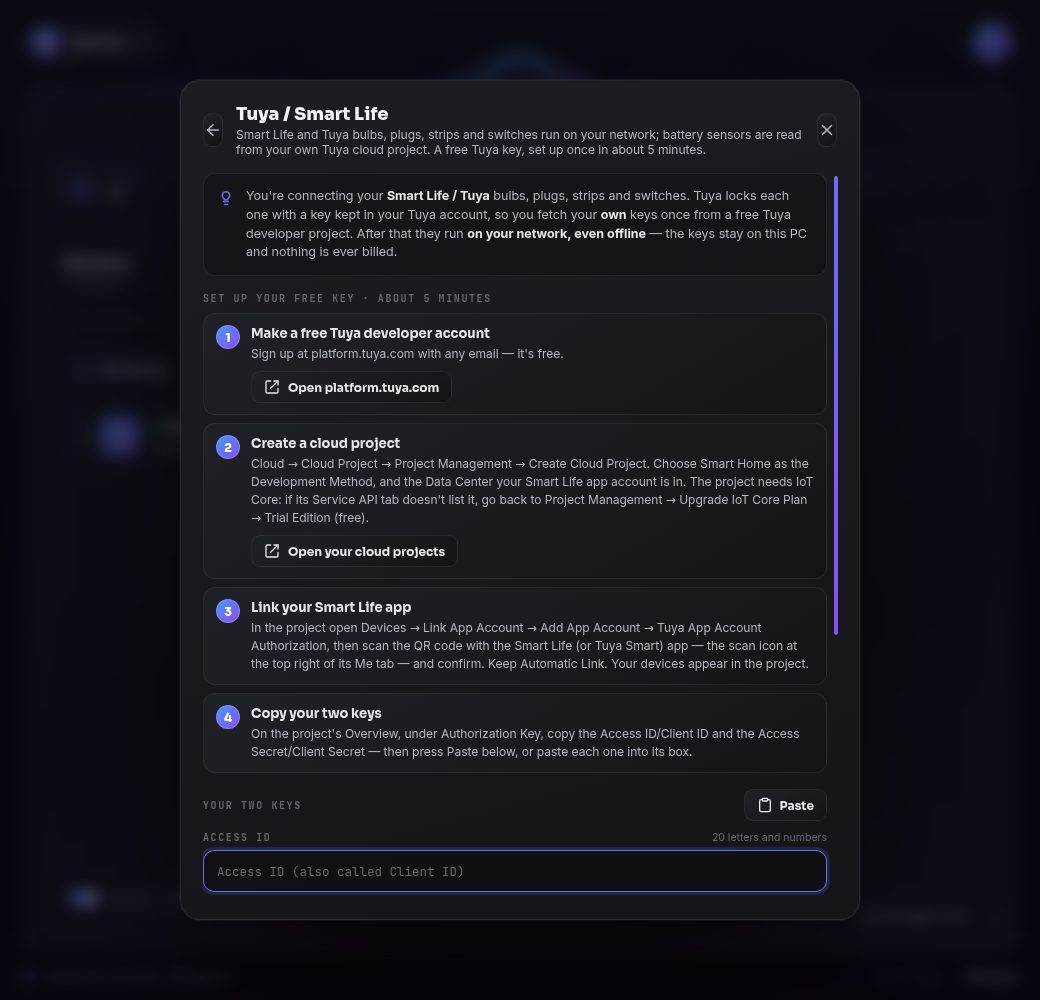
Screenshot: follow the numbered steps, then paste your keys. This one takes a free Tuya developer key and about five minutes. Copy the Access ID and Access Secret from your Tuya project, press Paste, then Fetch keys.
-
Step 10
Meross and SONOFF
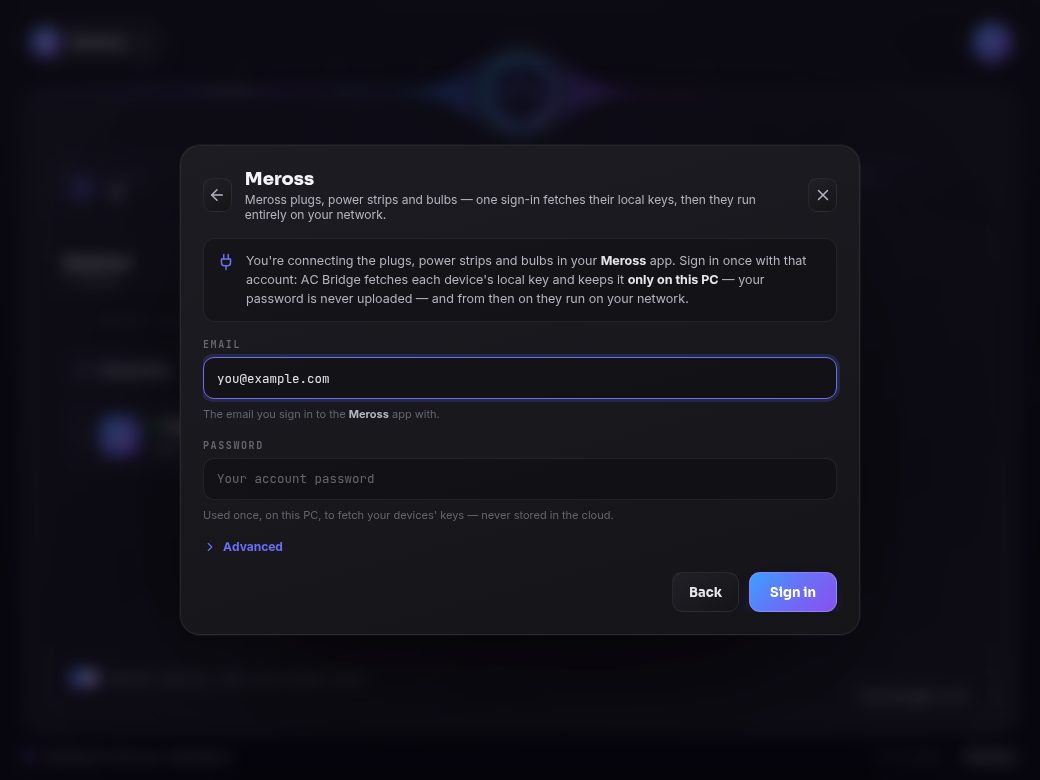
Screenshot: the same form serves eWeLink for SONOFF. Sign in once to fetch their local keys. After that they run entirely on your network. SONOFF devices set to local mode need no account.


-
Step 11
Add what the link found
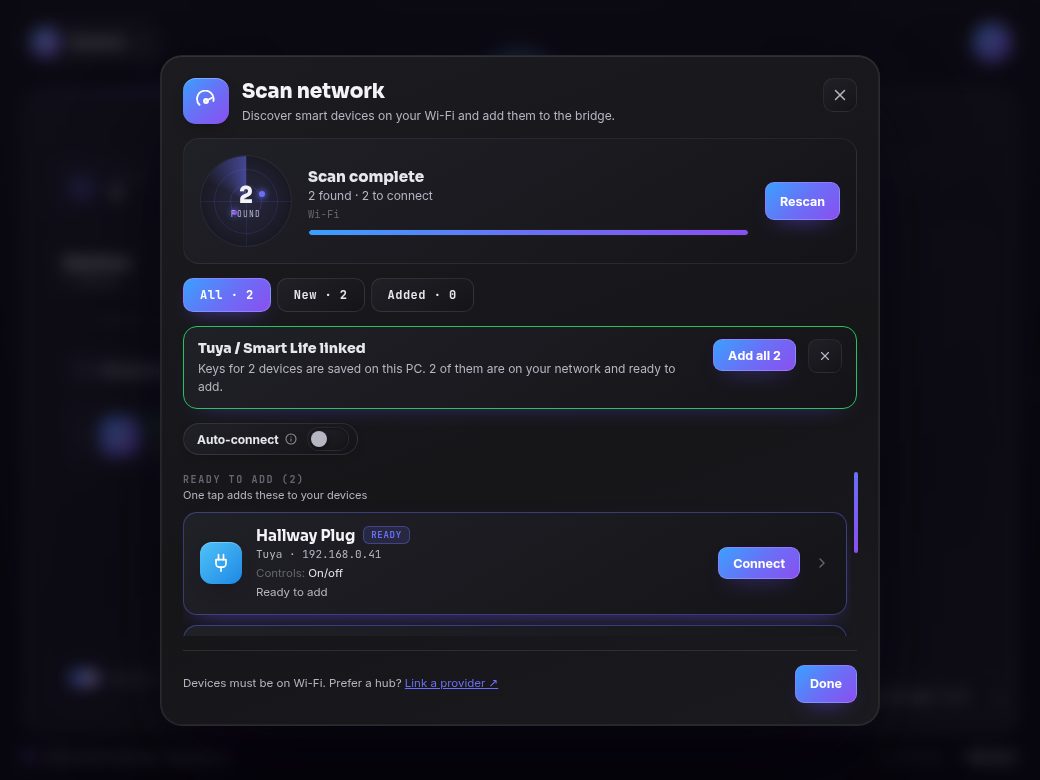
Screenshot: the app returns to Scan after a link. After a key fetch the app goes back to Scan. Press Add all, or add each device yourself.
-
Step 12
Brands that need no link
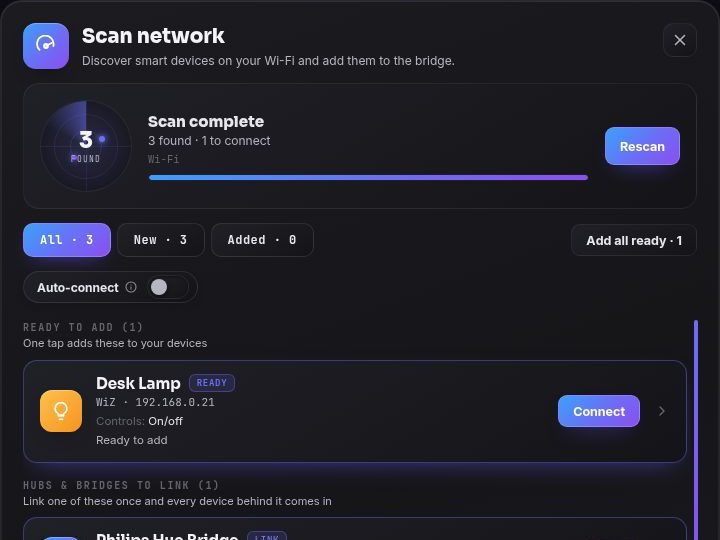
Screenshot: a WiZ lamp, ready to add with no account. Scan adds Kasa, WiZ, LIFX and Shelly with no account. For Govee, turn on LAN Control in the Govee app first. Most Tapo devices ask once for your TP-Link app login.


Choose the colours and the folder
A profile says what each agent state does. A folder decides which profile runs.
-
Step 13
Make a profile
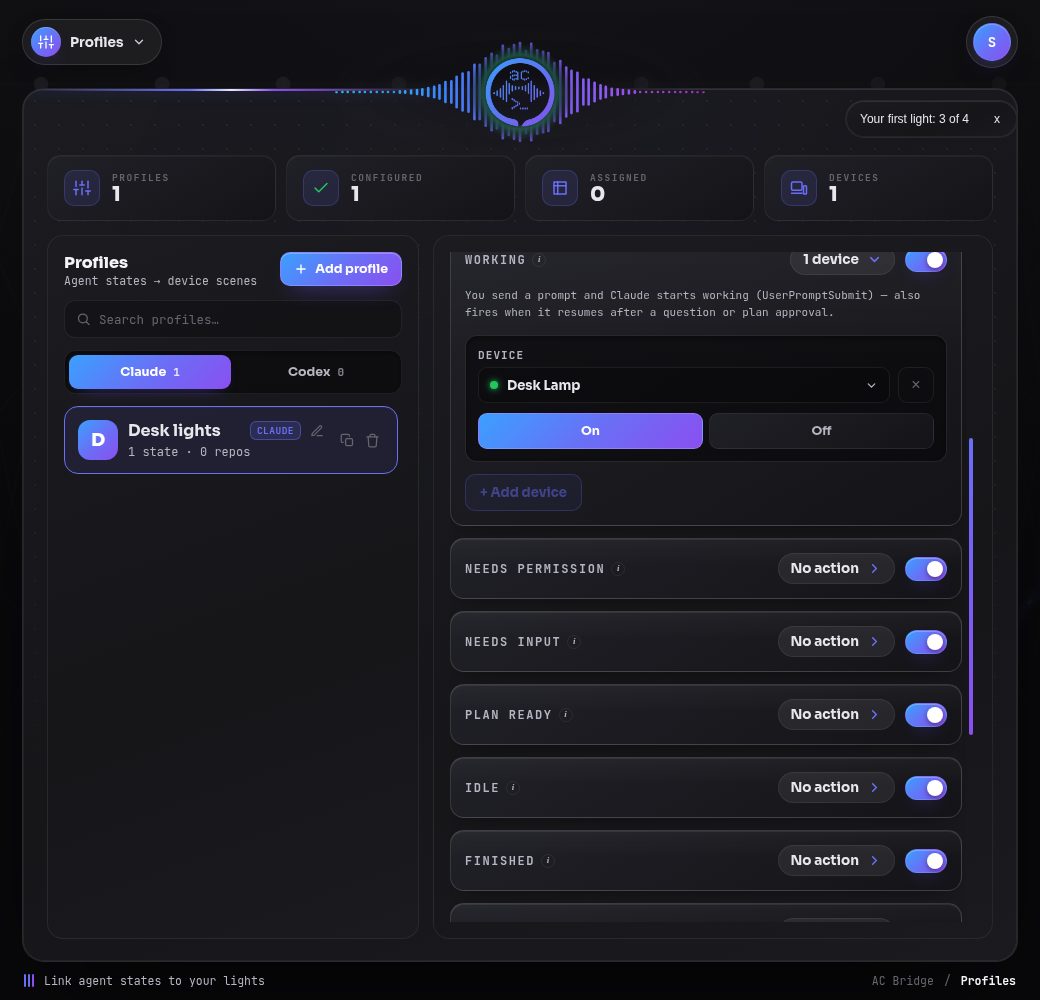
Screenshot: a sample profile with one state set. Open Profiles, press Add profile and choose Claude profile or Codex profile. A new profile starts blank. Add your devices, then pick what each state does.
-
Step 14
Bind your project folder
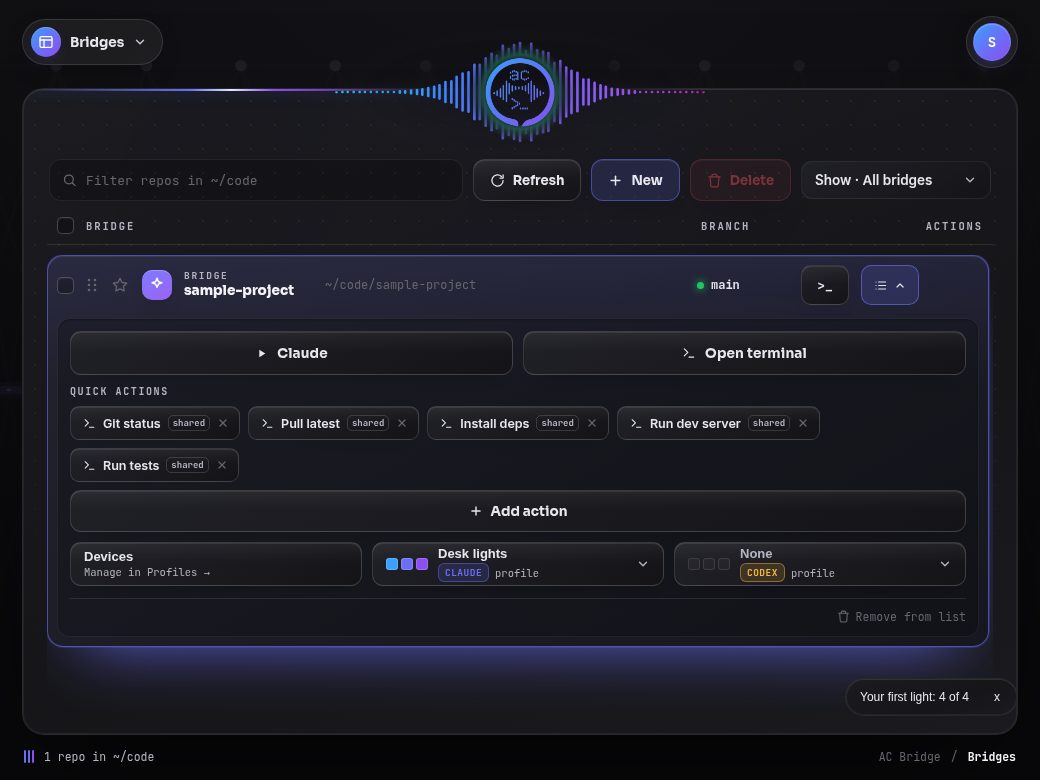
Screenshot: the folder now uses the sample profile. Open Bridges, press New and choose Add a single folder. Open the row and pick your profile.


That is the setup. Run Claude Code or Codex in that folder and watch the light.
Stuck? When the bridge will not start has the fixes.